CHEXX mobile access
CHEXX Mobile: Web Access and PWA Installation
CHEXX provides three ways to play: the fully functional website, a downloadable application route built around PWA installation plus desktop clients for macOS and Windows, and Telegram Mini Apps through @ChexxBetBot. There is no native mobile application in Google Play or the App Store.
The practical advantage is access to casino, sports, esports, promotions and support from one responsive interface. The main checks are browser compatibility, connection stability, notification privacy and whether the install prompt comes from the official CHEXX page.
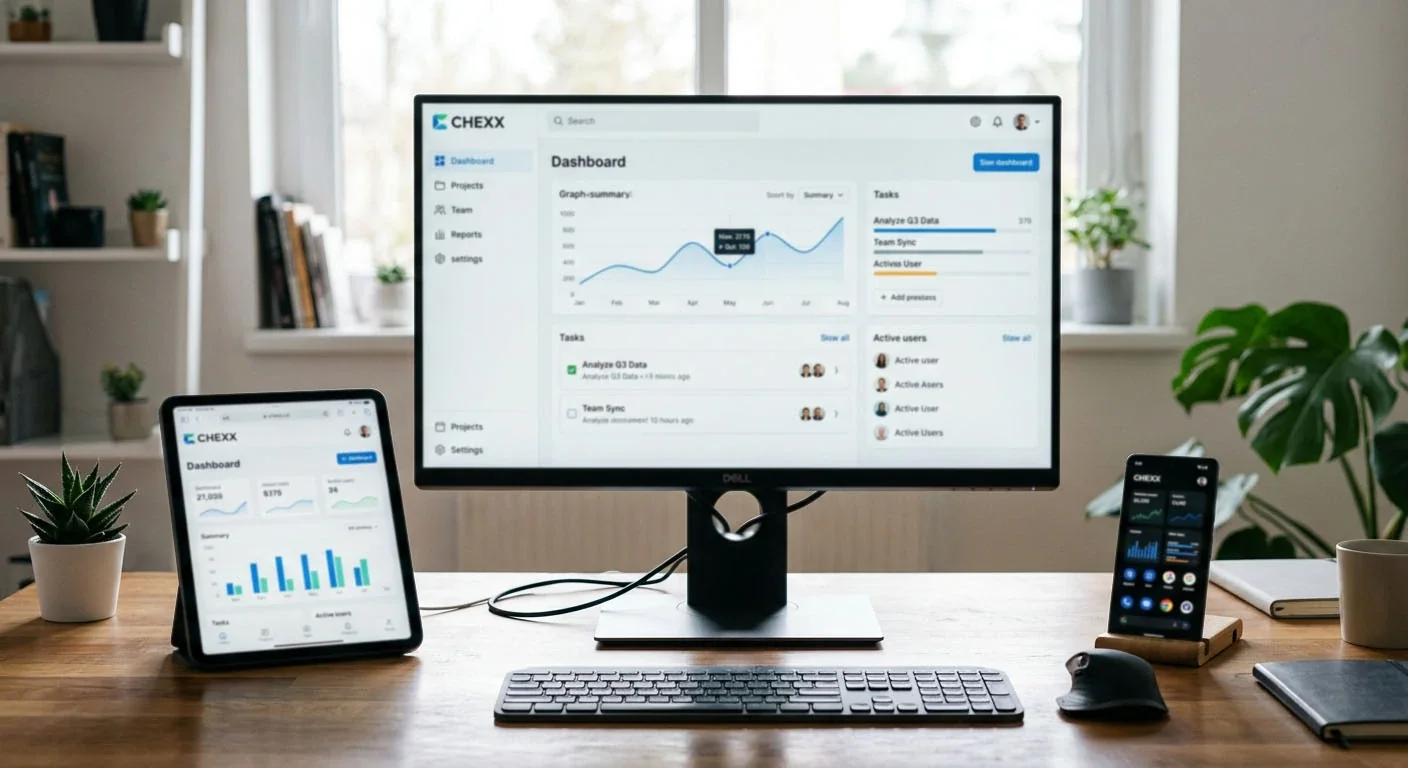
What the CHEXX mobile product actually is
CHEXX is browser-first on phones. The installable mobile route is a PWA, while macOS and Windows also have desktop clients. A second lightweight route is the Telegram Mini App through @ChexxBetBot.
CHEXX does not offer a native app in Google Play or the App Store. Start from chexx.bet or the official Telegram route rather than an APK mirror or third-party app listing.
Supported ways to play
| Route | Platform | What it provides |
|---|---|---|
| Website | Browser-capable devices | Full CHEXX platform at chexx.bet |
| PWA | Compatible browsers | Installable shortcut/application experience through the browser |
| Desktop client | macOS and Windows | Downloadable desktop access |
| Telegram Mini App | Telegram | Instant product access through @ChexxBetBot |
CHEXX does not specify one required browser. The website and PWA need a compatible current browser, while the Telegram Mini App runs inside Telegram.
Using CHEXX on Android
On Android, use the official CHEXX website in a compatible browser and install the PWA only through the browser’s own install or Add to Home Screen control when available. A genuine PWA does not require a separate APK package.
Before funding the account, test login, game navigation, the cashier and support from the same device. If the browser does not offer installation, the website remains the primary supported route.
Using CHEXX on iPhone or iPad
On iOS or iPadOS, use the official CHEXX website and the browser’s supported home-screen installation flow when available. The result is a PWA shortcut, not an App Store application.
Mobile web access remains sufficient if installation is unavailable or undesirable. Keep the official domain bookmarked and protect the device and registration email before enabling convenient one-tap access.
Desktop access on Windows and macOS
CHEXX lists downloadable desktop clients for Windows and macOS in addition to PWA installation. The same account also remains accessible through the full website.
Choose the route that gives you the clearest account, cashier and history controls. A desktop client is a convenience layer; it does not change bonus rules, KYC policy, payment networks or game mathematics.
Using CHEXX without installation
Installation is optional. The mobile website provides casino categories, sports, esports, account controls, payments and help through a normal browser. Using the website without installation can be preferable on a shared or temporary device because it leaves no permanent home-screen icon.
Bookmark the official page directly rather than following unfamiliar promotional links. Verify the connection and domain carefully each time, especially before entering a password, deposit address or email confirmation code.
Performance checks before real-money play
- Open the casino lobby and test category navigation.
- Launch a demo game where available.
- Test a live stream without placing a stake.
- Confirm that balance, currency and stake controls remain readable.
- Rotate the device and check portrait and landscape layouts.
- Switch briefly between Wi-Fi and mobile data outside an active round.
- Locate history and support before playing.
Animation-heavy slots and live streams can consume battery and data. Use a stable connection and avoid starting a round during a network handover.
What to do if a mobile game freezes
A frozen display does not necessarily mean the underlying round failed. Do not repeat the bet. Reconnect, inspect casino history and record the game name, time, amount and currency. Record the error message, game name and any round identifier without exposing unrelated personal information.
Use CHEXX 24/7 support if the balance and game history remain inconsistent. Force-closing the PWA can restore the interface, but confirm the previous result before continuing.
Mobile security
- Use device screen lock and current operating-system updates.
- Install only from the official web page.
- Do not store passwords on a shared phone.
- Keep email and exchange apps separately protected.
- Hide sensitive notification previews on the lock screen.
- Do not approve deposits or withdrawals over public Wi-Fi.
- Log out before lending or selling the device.
- Remove the PWA and browser data when access is no longer needed.
A home-screen icon can reveal gambling activity to anyone who handles the device. Use browser-only access if privacy on the device is uncertain.

Notification controls
CHEXX advertises notifications as a PWA feature. They can be useful for account events, but promotional alerts can also encourage unplanned play. Enable only the categories that provide operational value and disable marketing notifications that interfere with limits or self-exclusion decisions.
Lock-screen previews can expose account information. Review notification permissions in the browser and device settings rather than accepting every prompt during installation.
Mobile deposits and withdrawals
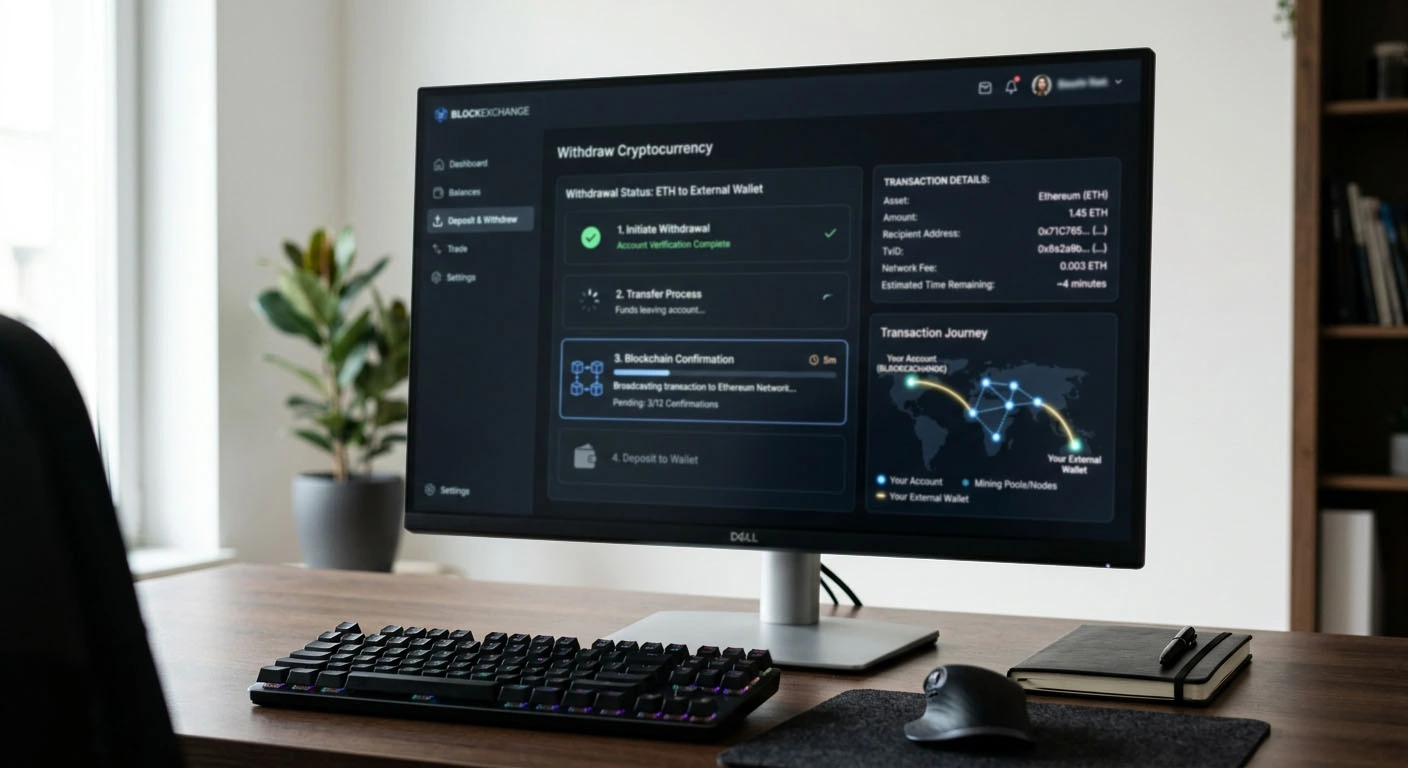
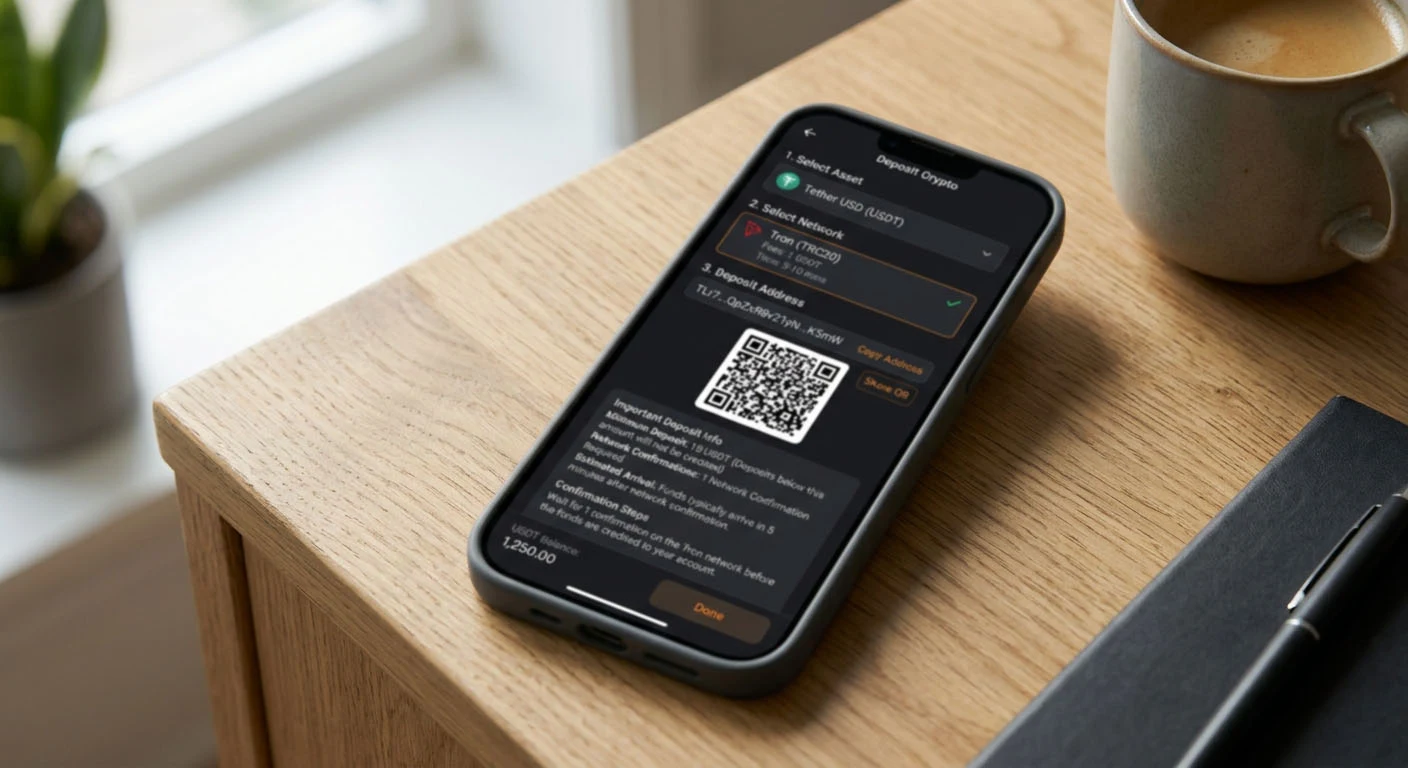
Mobile payment forms require the same asset and network checks as desktop. Copying an address between a casino PWA and wallet app is convenient but introduces clipboard risk. Compare the address after pasting and confirm the network at both ends.
Do not switch networks or close the form during an active confirmation step. Save transaction hashes and withdrawal details outside the PWA. CHEXX supports the crypto routes listed under payments; asset and network must match the selected cashier route.
Casino and sportsbook usability
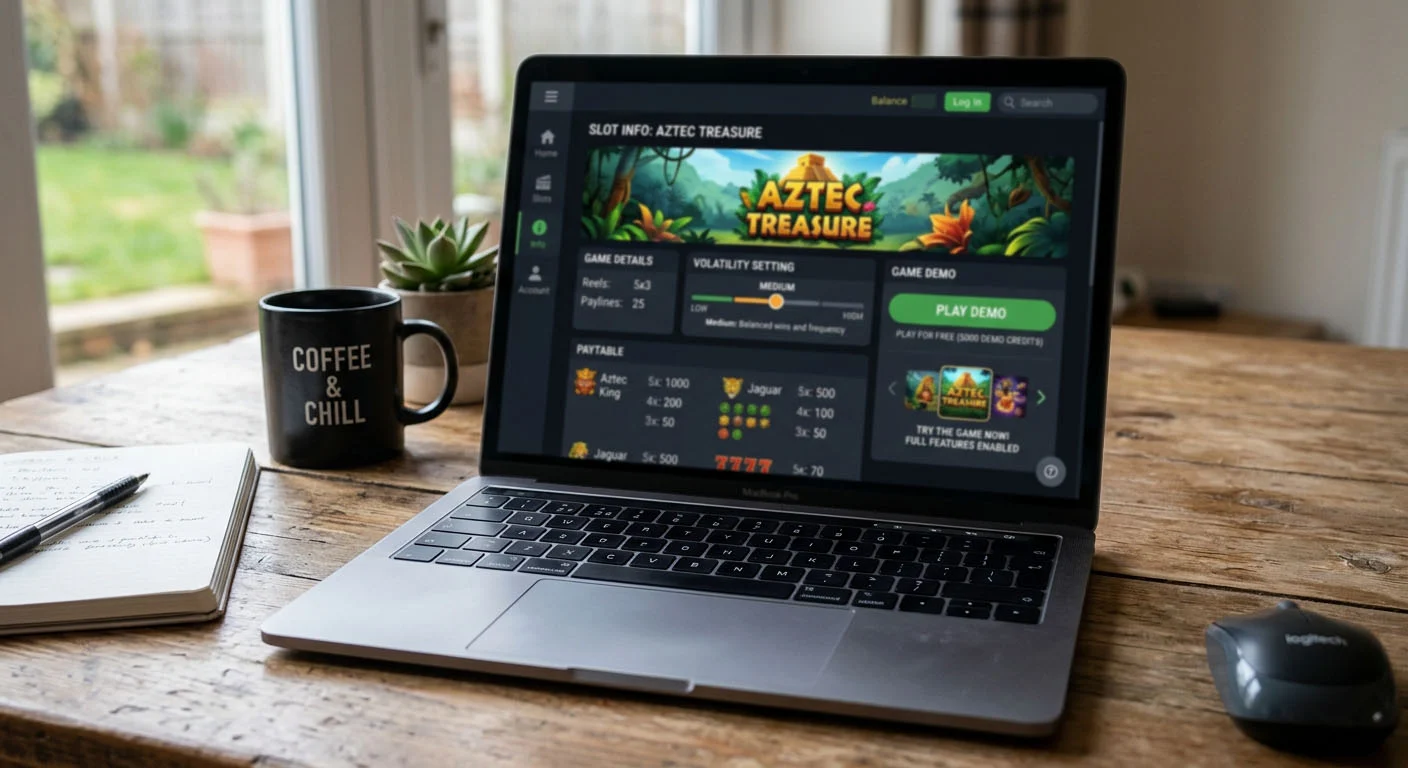
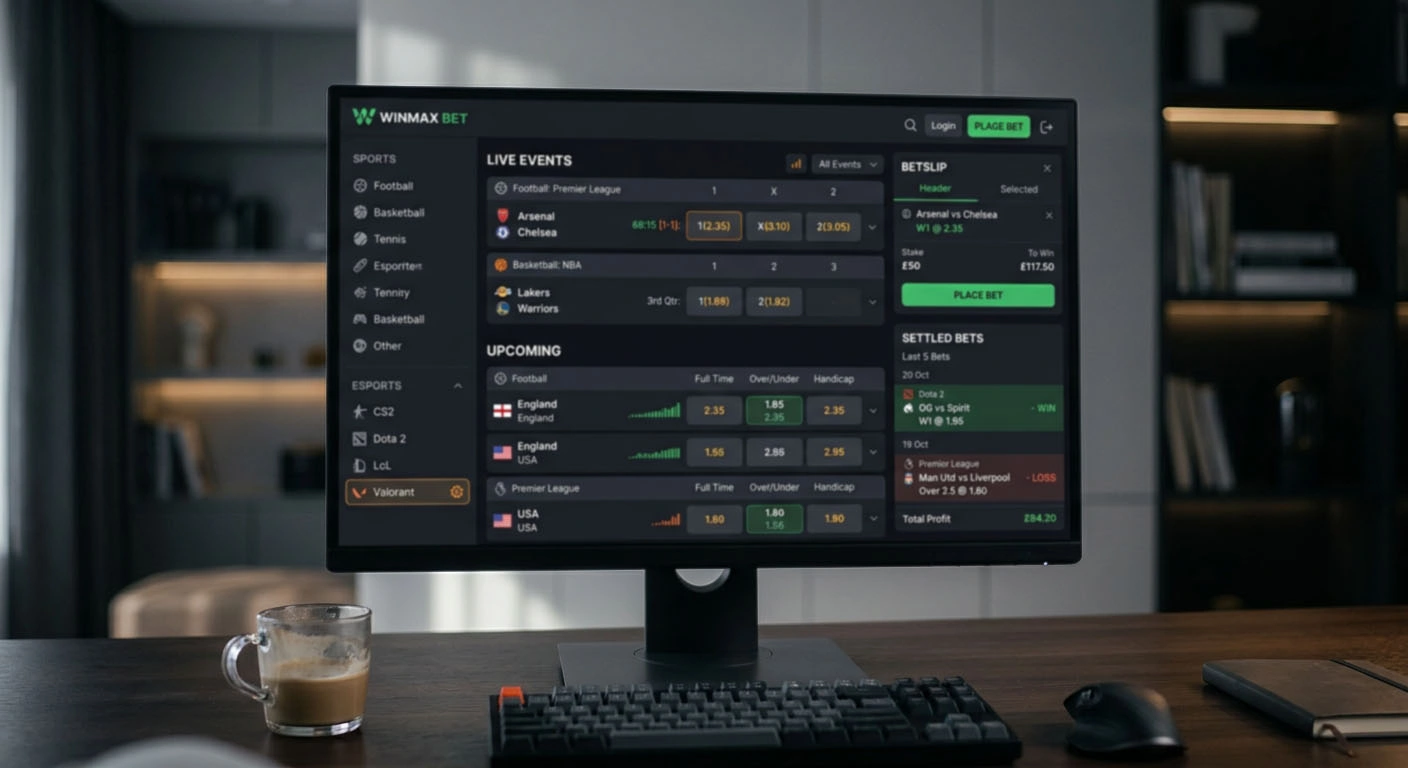
The official mobile page exposes slots, live casino, fast games, providers, sports and esports. Slot controls should be tested for readable stake values; live games require stable video and a visible decision timer; sportsbook selections require careful review before confirming a bet.
Do not assume the same portrait layout works equally well for every supplier. Demo mode is useful for testing a game interface without real funds. See the games guide for category-specific checks.
Mobile access and gambling limits
Constant access can remove natural breaks, so set the spending and time boundary before opening CHEXX. The platform’s public age threshold is 21+.
CHEXX provides self-exclusion for 1 to 21 days. An early restoration request goes through [email protected], with a stated response window of up to 72 hours. Removing a PWA shortcut is not the same as using the account restriction.
PWA versus browser-only access
| Factor | PWA | Browser only |
|---|---|---|
| Launch | Home-screen or dock shortcut | Bookmark or typed address |
| Notifications | Supported with permission | Depends on browser settings |
| Device privacy | Visible installed icon | Less visible if history is managed |
| Updates | Web content updates through the service | Web content updates on reload |
| Account | Same CHEXX profile | Same CHEXX profile |
Using CHEXX on a mobile connection
Casino streams, animation-heavy slots and live betting can use substantially more data than account pages or the cashier. A stable connection matters most when a round or live market is already in progress, because a network switch can interrupt the interface at the point a decision is being submitted.

Before using mobile data for a longer session, test login, support, cashier access and one low-stakes or demo game. Keep the registration email accessible on the same trip without leaving it permanently signed in on an unlocked device.
CHEXX mobile questions
Is there a native CHEXX app in Google Play or the App Store?
No. CHEXX uses a PWA for mobile installation instead of a native store app.
Are desktop clients available?
Yes. CHEXX lists macOS and Windows desktop clients.
Can I play without installing anything?
Yes. chexx.bet is a fully functional website.
Does CHEXX have a Telegram app?
Yes. The Telegram Mini App uses @ChexxBetBot.
What support channel is available from mobile?
CHEXX lists 24/7 live chat, [email protected] and @ChexxSupportBot.
Updates, cache and storage
A PWA normally receives changes through the web service, so users do not manage every update through an app store. If the interface appears stale, close the PWA, reload the official site in a supported browser and check browser or operating-system updates. Clearing site data can fix corrupted cached files, but it also signs the user out and removes local preferences.
Before clearing data, record any unresolved transaction or game reference and confirm access to the account email. The website can also be used temporarily without reinstalling software from an unofficial download.
Review device permissions
A PWA should receive only the permissions needed for the features you choose to use. Review notification and storage permissions at device level and keep lock-screen previews private on a shared phone.

KYC is not a routine mobile permission or signup requirement. CHEXX states that KYC is required only when suspicious activity is detected. If a verification request appears, handle it through the official account or support channel rather than granting broad device access.
Data use and weak connections
Live casino video, animated slots and updating sports markets use different amounts of data. A live stream is the heaviest category and most sensitive to latency. If the connection is limited, reduce other traffic and avoid playing while the device switches networks.
A weak connection can delay the display while a wager still reaches the server. Repeated taps are unsafe. Wait for confirmation, inspect history and save the exact time, game or transaction reference and displayed error if the balance and interface disagree.
Changing devices
Before selling a phone, log out, remove the PWA, clear CHEXX browser data and review active sessions in connected email, Google, Telegram or wallet services. Removing the icon alone may leave credentials behind.
On a replacement device, navigate independently to the official site and install again. Do not restore an unofficial package or shortcut. Test login and email access before moving funds.
Roaming and location changes
Roaming or changing networks can affect connection quality, login sessions and security checks. If the mobile site presents an unusual verification request after a location or network change, stop retrying and use CHEXX’s official support channels before sending sensitive information.
Before travel, finish unresolved payments, retain transaction records and confirm access to the account email. Repeated VPN, proxy or location-spoofing changes can also trigger security concerns and should not be used to bypass an account restriction.
The full picture is in our CHEXX review for Singapore.
An account comes first: registration.
Written by the editors at Chexx Casino.